


GoSafe is designed for safety of digital content on personal as well as corporate systems. GoSafe uses very strong AES 128 Encryption.
Here is a brief guide on how to use GoSafe.
Gosafe includes three applications.
- GoSafe Encryption Service (Safety of digital contents)
- Â Secured Windows Login (Securing hardware access)
- Secured Web Login (Safety of online passwords)
Flow chart for using GoSafe:


Set Admin password:
Every dongle has two passwords, Admin password and User password. Admin password by default are given as “123456â€. User password is set by admin during step 2.
Creating/Changing Admin password
- Insert GoSafe dongle.
- Open GoSafe Login Credentials.
- Click on Change Password enter Old Password or the default password 123456 (if you are changing for the first time). Enter the new password and click on OK.
- Admin password should be kept in a safe place and should not be disclosed to anyone, if not so, then anyone who gets hold of admin password can change permissions of the dongles and your data will be in danger.
- You can reset your admin password, in case you forget it, by using Encryption keys of the dongle.


- To reset your dongle password click on Reset Password >> Load keys From File(load the encryption key) >> Enter new keys >>ok .

Set Windows Login Credentials and User password:
- By setting Windows Login credentials, you restrict access to your computer, i.e., it can be opened only when dongle is connected and user password is entered.
- Open GoSafe Login Credentials, select Windows in Select Settings.
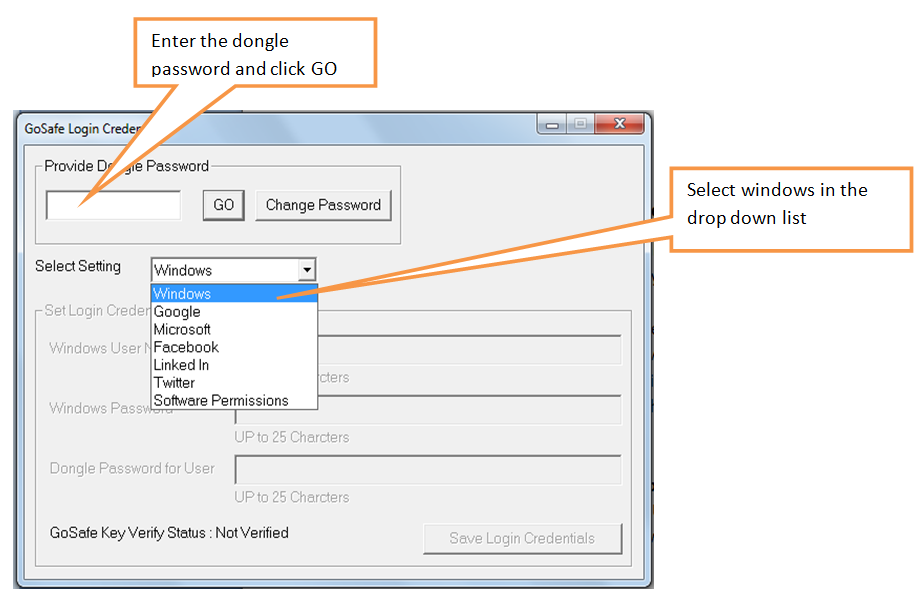
- Enter your Windows username and password, enter user password for the dongle.
- Click on Save Login Credentials. Next time when you login to your windows, connect the dongle and enter the user password, or else you will not be able to login.

- When you logon to your windows next time, you will see a screen similar as below.
- If you don™t see similar screen as below, then the screen is your default screen click on Switch User.


How to hide default credential providers from the Windows Logon User Interface (Not Recommended).
After installation of GoSafe Login Credentials, several credential providers are available to logon from the Windows logon user interface.
There are some steps to hide certain credential providers from the Windows logon user interface. This way, you can ensure that only the GoSafe Login Credentials is available for logon.
Step 1: Go to Start Menu and Run (gpedit.msc).
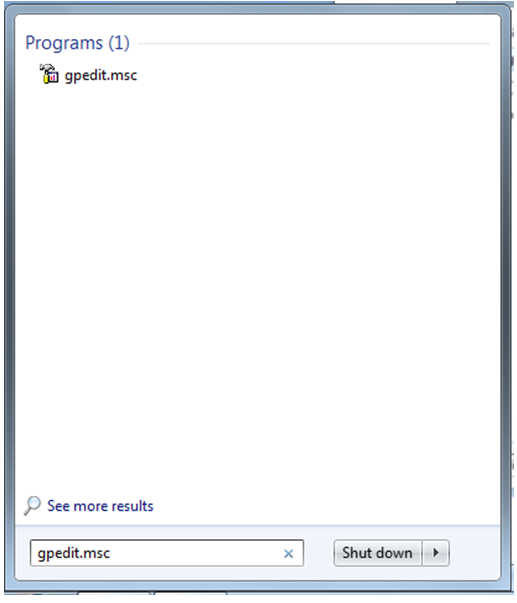
- You will see the below window.

Step 2: Go to the Computer Configuration -> Administrative Templates -> System -> Logon.

Step 3: Right Click on Exclude credential providers and Edit.

Step 4: Click on Enabled and Enters the comma-separated CLSID to exclude multiple credential providers.

List of default Windows 7 credential providers CLSIDs
| Generic Provider | {25CBB996-92ED-457e-B28C-4774084BD562} |
| NPProvider | {3dd6bec0-8193-4ffe-ae25-e08e39ea4063} |
| VaultCredProvider | {503739d0-4c5e-4cfd-b3ba-d881334f0df2} |
| Password Provider | {6f45dc1e-5384-457a-bc13-2cd81b0d28ed} |
| Password Provider\LogonPasswordReset | {8841d728-1a76-4682-bb6f-a9ea53b4b3ba} |
| Smartcard Credential Provider | {8bf9a910-a8ff-457f-999f-a5ca10b4a885} |
| Smartcard Pin Provider | {94596c7e-3744-41ce-893e-bbf09122f76a} |
| WinBio Credential Provider | {AC3AC249-E820-4343-A65B-377AC634DC09} |
| CertCredProvider | {e74e57b0-6c6d-44d5-9cda-fb2df5ed7435} |
This table shows the Windows 7 and Windows 8 GUIDs for these in-box providers:
| Password Credential Provider | |
| Windows 7 GUID | 6f45dc1e-5384-457a-bc13-2cd81b0d28ed |
| Windows 8 GUID | 60b78e88-ead8-445c-9cfd-0b87f74ea6cd |
| Smart Card Credential Provider | |
| Windows 7 GUID | 8bf9a910-a8ff-457f-999f-a5ca10b4a885 |
| Windows 8 GUID | 8fd7e19c-3bf7-489b-a72c-846ab3678c96 |
| Biometric Credential Provider | |
| Windows 7 GUID | 8fd7e19c-3bf7-489b-a72c-846ab3678c96 |
| Windows 8 GUID | bec09223-b018-416d-a0ac-523971b639f5 |
Step 5: Click on Apply and OK.

After applying the setting, only the GoSafe Login Credentials is shown during the authentication process.
Note:
- Hiding credential providers via group policy only work in windows 7 Professional and Ultimate and Windows 8 Professional and Ultimate. This is not work in Windows Home Basic and Premium version.
- Hiding credential providers via group policy also applies to UAC and Run As authentication dialog boxes.
- Hiding the Generic Provider {25CBB996-92ED-457e-B28C-4774084BD562} and the NPProvider {3dd6bec0-8193-4ffe-ae25-e08e39ea4063} may result in a state, where authentication against websites or applications that require “Basic Authentication (HTTP 401 Challenge)” or “Digest Authentication (HTTP 401 Challenge)” may fail.
- Make sure you unhide the hidden credential providers again if you plan to remove GoSafe Login Credentials from your system. If you leave them hidden, following removal of GoSafe Login Credentials, the Windows Logon User Interface does not provide you with a credential provider to authenticate, and the Windows credential providers remain hidden.
Set Encryption Keys:
- You need to set Encryption Keys for the dongles before using it for the first time.
- You generate two keys each of 100 character length.
- These keys are used for encrypting your files.
- Open GoSafe Login Credentials enter the dongle password, Select Software Permissions in Select Settings, now Set Encryption Keys button is activated.

- Enter the dongle password, generate two keys key 1 and key 2 and save them in a safe place.

Set User Permissions:
After creating Admin and user password for each dongle you need to give permissions to the dongles i.e., which software files to be encrypted and which are not be.
To give software permissions,
- Insert GoSafe Dongle.
- Open GoSafe Login Credentials.
- Enter Admin password of the dongle and click GO.
- Select Software Permissions from the dropdown box in Select Settings.

- Now you can see 10 types of software programs, MS Word, Excel, PowerPoint, Outlook, VLC Audio Video, AutoCad, Cadian, Solid Works, Quark Xpress, Adobe Reader.
- Once GoSafe is installed on the machine none of the above mentioned software/programs will open until the dongle is connected and permissions are set.
For each Software program you can set four types of permission1. Not Allowed
In case permission is given as Not Allowed to a program/software then the user cannot even open the program/software once Gosafe is installed on the computer.
2. Normal
In case permission is given as Normal to a program/software then the user can use the program/software like a normal program though Gosafe is installed on the computer.
3. Encrypted
In case permission is given as Encrypted to a software then user can encrypt previous files of the program/software, once Gosafe is installed then every file created in the software will be encrypted automatically.
4. Encrypted++
if permission is given as Encrypted++ to a software then user can perform both operation encryption and Decryption. In addition user can also send unencrypted files by email or copy to external media. Hence Admin should make sure that this permission is given to authorized persons only.

After setting permissions to Dongle, select Dongle setting from the dropdown box, you can give three types of dongle setting.
-
 Only to Set Encryption
If you select Only to set Encryption then once GoSafe is installed and encryption is set you can remove the dongle.
-
No Dongle : Screen Lock
If this setting is set to a dongle and anyone tries to remove the dongle, computer screen will be completely locked.
-
No Dongle : Close Programs
If this setting is set to a dongle then the software/programs will automatically close once the dongle is removed. This means dongle should remain connected all the time.

- You can also see the previously set permissions to a dongle, by clicking on Read Dongle.
- After setting permissions to the dongle click on Save Permissions.
Similarly, insert other dongles and give respective permissions. - Once GoSafe is installed on a computer only Admin can stop/uninstall it.
Encrypt Files:
- After installation of GoSafe , right click on the GoSafe icon in the taskbar you can see an option Encrypt Files, which will allow you to encrypt the formats of the programs to which Encrypted or Encrypted++ permission is given.
- Now select the file you want to encrypt and click on Open.
- You will be able to select only files of the program to which you have given the permission as Encrypted or Encrypted++.
- The file will be copied to a folder in My Documents named GosafeFileEncryption which will be encrypted file.

Decrypt Files:
- Decryption can be performed by the users on the file formats of programs to whom Encrypted++ permission is given by the Admin.
- Right click on GoSafe Icon in the taskbar, Decrypt Files option will be visible if permission is given as Encrypted++ to any of the programs, if not, no such option will be visible.
- You can select your file to be Decrypted from GoSafeEncryptedFiles folder in My Documents only.
- Select the file and click on Open.
- Now your file is decrypted and stored in GoSafeDecrytpedFiles folder in My Documents which is automatically created.

Set Web Login Credentials
- Open GoSafe Login Credentials, enter the dongle Admin password.
- Select the website Google/Microsoft/LinkedIn/Facebook/Twitter.
- Enter the username and password of the website.
- Click on save credentials.
- Now you open use GoSafe Web Broser and login to these sites with GoSafe Dongle. This can be done when you feel the area in which you are working is not safe. On click on the icon of the website you will be asked for user password and you will be logged in.

Dowload the help file from below download link.
| Go-Safe Service help file | |